UI Widgets Responsive
- UI Widgets Responsive
- LayoutBuilder
LayoutBuilder widget provides Information about the parent widget constraints which allow us to build ui which change once screen size is changed. We should use this widget when we need to adjust our app ui dynamically on basis of space.
LayoutBuilder(
  builder: (BuildContext context, BoxConstraints constraints) {
    if (constraints.maxWidth > 600) {
      return Text('Large layout');
    } else {
      return Text('Small layout');
    }
  },
)
- Flexible
Flexible widget one of the most popular widget which commonly used by every flutter developer We make our app responsive by using Flexible widget by setting flex property of child widget.
Let’s imagine we have multiple widget vertically or horizontally and we want to share the available space equally or in a proportional manner, then we can them in Flexible widget and give flex property.
Row(
  children: [
    Flexible(
      flex: 1,
      child: Container(color: Colors.red, height: 50),
    ),
    Flexible(
      flex: 2,
      child: Container(color: Colors.green, height: 50),
    ),
    Flexible(
      flex: 1,
      child: Container(color: Colors.blue, height: 50),
    ),
  ],
)
- Expanded
We used Expanded widget once we want to take cover all remaining space covered by our widgets in column or row.In this widget we don’t need to explicitly define flex property to 1 to cover all remaining space of layout.
Column(
          children: [
            Container(
              height: 100,
              color: Colors.blue,
            ),
            Expanded(
              child: Container(
                child: Center(
                  child: Text(
                    'Expanded Widget',
                    style: TextStyle(
                      fontSize: 24,
                    ),
                  ),
                ),
              ),
            ),
            Container(
              height: 100,
              color: Colors.yellow,
            ),
          ],
        ),
- AspectRatio
AspectRatio is very useful widget when we need to consistent the ratio of width and height of our child widget.Like in media player or while display any image in our UI.
AspectRatio(
  aspectRatio: 16 / 9,
  child: Image.asset('path/to/image.jpg'),
)
- FractionallySizedBox
We should use FractionallySizedBox widget when we want a widget to occupy a specific fraction of the available space to create a responsive layout where layout will always will take a certain portion of screen, regardless of our screen size.
FractionallySizedBox(
  widthFactor: 0.7,
  heightFactor: 0.5,
  child: Container(
    color: Colors.blue,
    child: Center(
      child: Text(
        'Responsive Box',
        style: TextStyle(
          color: Colors.white,
          fontSize: 20,
        ),
      ),
    ),
  ),
)
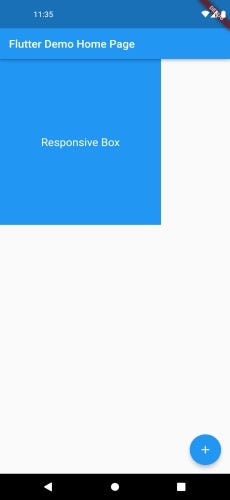
here we set widthFactor 0.7 which means that Container will take 70% of available width and 50% of height.
- Wrap
The Wrap is widget is very useful when we have multiple widget that need to wrap on to next line when the space is limited.
Wrap widget automatically adjust the layout to wrap to its children.
Wrap(
  direction: Axis.horizontal,
  children: [
    Container(width: 100, height: 100, color: Colors.red),
    Container(width: 100, height: 100, color: Colors.green),
    Container(width: 100, height: 100, color: Colors.blue),
    Container(width: 100, height: 100, color: Colors.yellow),
    Container(width: 100, height: 100, color: Colors.orange),
  ],
)
- OrientationBuilder
OrientationBuilder widget is very helpful to make dynamic User interface which allow us to make different UI based Device orientation.
OrientationBuilder(
  builder: (BuildContext context, Orientation orientation) {
    return Text(
      orientation == Orientation.portrait
          ? 'Portrait Mode'
          : 'Landscape Mode',
    );
  },
)
- FittedBox
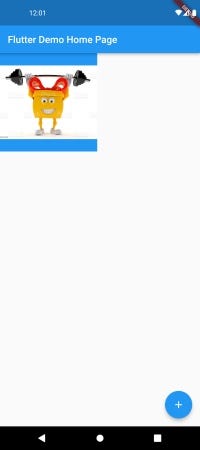
FittedBox widget is useful when we want our content with fixed size container or box while preserving the aspect ratio and want to avoid overflow of our content.
Container(
  width: 200,
  height: 200,
  color: Colors.blue,
  child: FittedBox(
    fit: BoxFit.contain,
    child: Image.asset('path/to/image.jpg'),
  ),
)
In our example, the FittedBox widget scales the Image asset to fit within the 200x200 container while preserving its aspect ratio.
- IndexedStack
IndexedStack widget allow us to place multiple widget on top of one another but will show one widget at a time by based on provided current index.
int currentIndex = 0;

IndexedStack(
  index: currentIndex,
  children: [
    Container(color: Colors.red),
    Container(color: Colors.green),
    Container(color: Colors.blue),
  ],
)
- Visibility
Visibility widget is one of the very interesting widget in flutter which i personally liked , by help of this widget Twitter take $8/month charges for blue tick.
Visibility widget give us control to show it’s child widget or not on based on a given condition. It’s very useful when we have to show or hide a widget dynamically based on certain events or user interactions.
bool isVisible = true;

Visibility(
  visible: isVisible,
  child: Container(
    width: 200.0,
    height: 200.0,
    color: Colors.blue,
  ),
)